
Frequently Asked Questions
Find quick answers to common questions about Gluon ERP, its features, implementation, pricing, and business solutions.
How to give rights to any user in GLOUN ERP ?
1-Open the software from admin:-
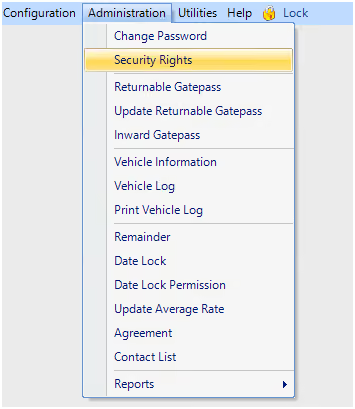
First of all open the software Gluon ERP From admin and then moves to the button administration When you click on the administration, on the below side you will see the word of security rights Like.
2-Select the User Button:-
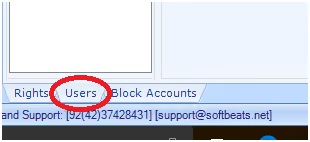
After open the software from admin click on the button user.
3-Select the User Name:-
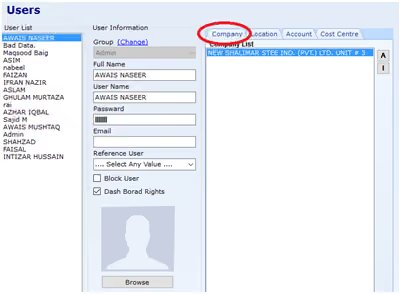
Select the username which you want to give rights, the different type of button you will see like company, Location, Accounts, and cost center .If you want to give rights of company than click on the button company and select all and same with Location, Accounts and cost center.
4-Save the Changes:-
Last step is click on the save button and re Login the software.
How to find Missing Voucher in Gloun ERP ?
1-Open the software and go to the Voucher history:-
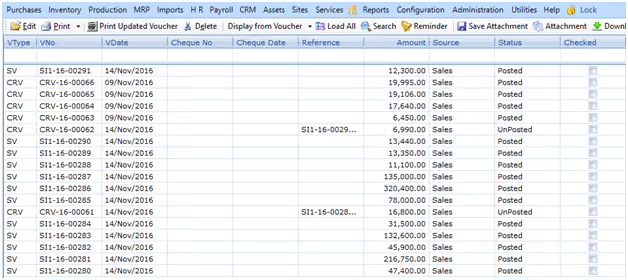
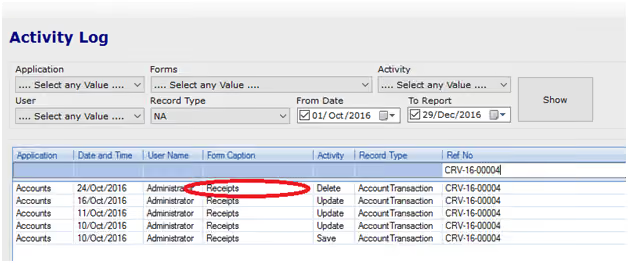
The first step is the open the software and go to the history of the voucher, from the voucher history check the voucher number for which you want to find like this.
2-Go to the Utilities and then Activity Log Report:-
The second step is go to the utilities from the top navigation and then Activity log report.
3- Click on the button Show:-
After selecting Activity Log report, Click on the button Show, the List you will see on your screen but date is must select for which period you want to find .From caption show you, voucher is enter from where like voucher, receipts etc.
How to update Release in Gluon ERP?
1-Copy the Release:-
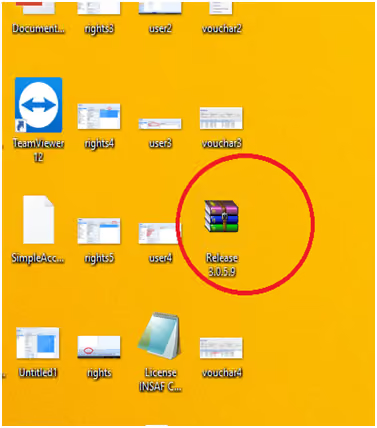
The first step is copy the release from the location where release is located, suppose release is located on the desktop, then copy the release from the desktop.
2-Close the Software Gluon ERP:-
Close the software Gluon ERP after or before the release copy, if you will not close the software Gluon ERP will show error in updating.
3–Open the properties of Gluon ERP:-
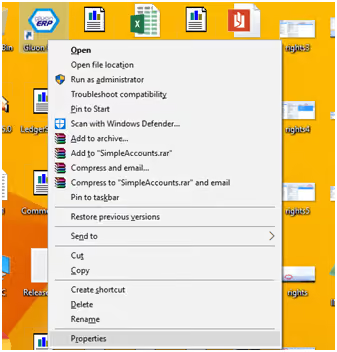
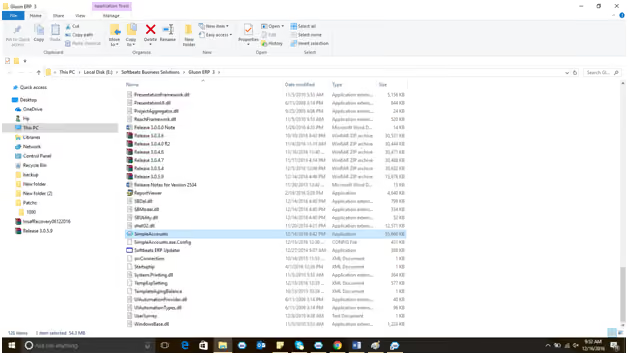
Right click on the icon of Gluon ERP and select the properties .when you will select the properties button the small window will open from which click the Properties.
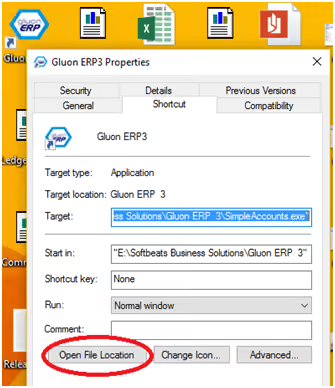
Click on the Open file Location.
4–Paste and Extract the Release:-
When location will open, just paste the release and extract here but one thing is notify software must be closed.
How to connect Software Gluon ERP with Database ?
1-Open the software:-
When you will open the software the mention button you will see on the screen.
2-Connect to the server:-
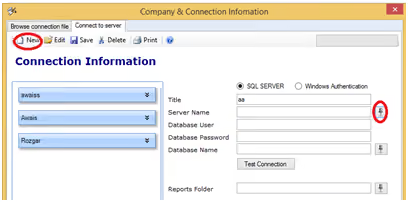
Second step is the click on the button connect to server, button you will see like this
3- New connection:-
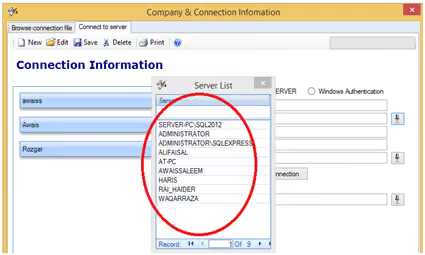
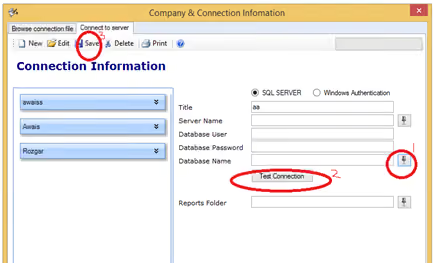
In which we will make new connection, firstly we put title name, second we select server name
From mention button.
4-Put Database user and database password:-
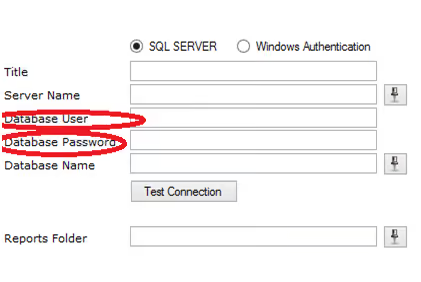
Put database user sa and Put database password of the database.
5-Select Database Name:-
In this step we select database name and click on the button test connection, the message
You see on the screen like Test connection succeeded successfully and then click on the save
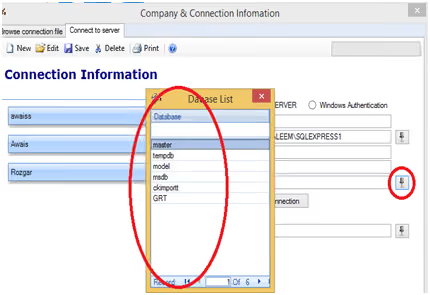
6-Click on the below button:-
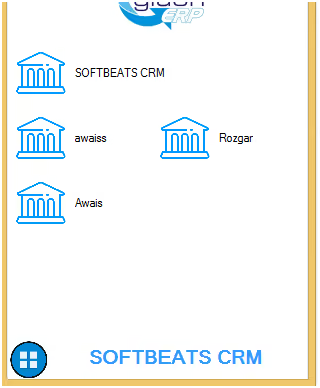
Click on the below button and select your title name, after selecting your title name Put
Username and password that’s it.
One platform.
Every part of your business.
One platform to streamline every business operation.


Award Winner

Stay updated with Gluon ERP
Get product updates, feature releases, AI innovations,
and ERP insights delivered to your inbox.
and ERP insights delivered to your inbox.
Oops! Something went wrong while submitting the form.
Follow us


© 2026 Gluonerp I All Rights Reserved
Request Your Free
Gluon ERP Demo

